Markdown Viewers on macOS: Terminal and Browser Options
TL;DR: Render markdown from terminal using glow (for terminal viewing),
mdcat (for rich formatting), grip (for GitHub-accurate previews with
images), or pandoc (for document conversion and flexibility).
Overview#
Markdown is the standard format for documentation, notes, READMEs, and technical writing. macOS users have several options for viewing it from the command line, ranging from simple terminal renderers to full-featured browser previews with image support. The right tool depends on your workflow:
- Terminal-only with attractive formatting:
glowormdcat - GitHub-accurate previews with images:
grip - Document conversion to PDF/HTML:
pandoc
Glow#
- What it is: One of the most popular terminal Markdown viewers with attractive formatting
- GitHub: charmbracelet/glow
- Latest Release: v1.5.1 (January 2025)
- Installation:
- Usage: See glow documentation for advanced options and paging modes.
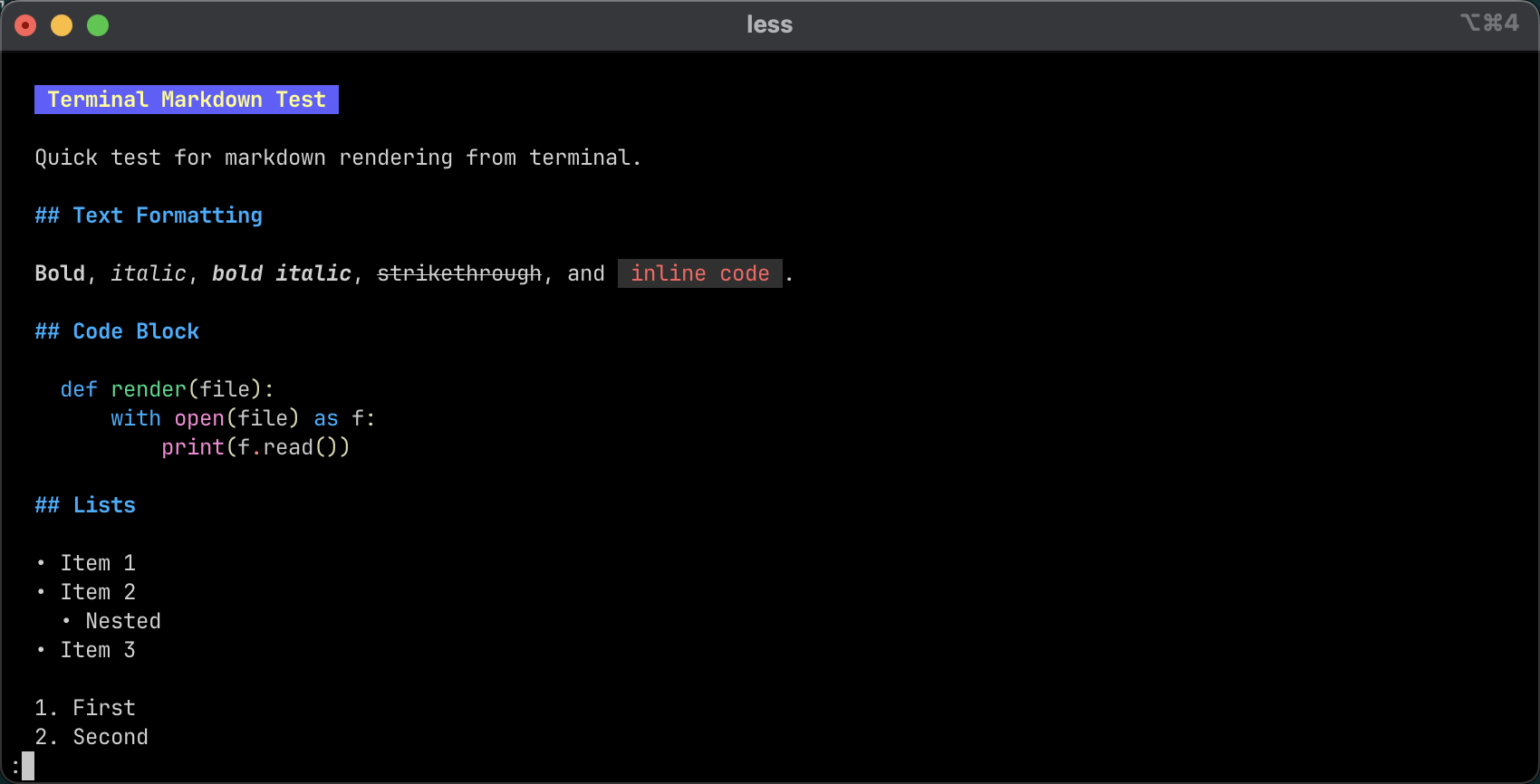
- Advantages:
- Fancy terminal interface with multiple themes
- Fast and lightweight
- Great for reading documentation
- No dependencies beyond the binary
- Disadvantages:
- Does not display images inline
- Terminal-only
-
Best for: Everyday terminal documentation reading
-
Tips and tricks:
-
Disable pager
> more /Users/saggese/Library/Preferences/glow/glow.yml
# style name or JSON path (default "auto")
style: "auto"
# mouse support (TUI-mode only)
mouse: true
# use pager to display markdown
#pager: true
# word-wrap at width
width: 80
# show all files, including hidden and ignored.
all: false
# line-numbers: true
TUI vs Pager modes:
- TUI (Terminal User Interface): Interactive full-screen mode with keyboard navigation. Glow enters full-screen, lets you scroll, search, and navigate with arrow keys and hotkeys. Best for exploring long documents.
- Pager: Pipes output through a pager like
less, streaming content progressively. Familiar if you're used toless,more, ormanpages.
mdcat#
- What it is: Rich Markdown renderer written in Rust with advanced formatting support
- GitHub: swsnr/mdcat
- Latest Release: v0.32.1 (October 2024)
- Installation:
- Usage: For image rendering, see mdcat terminal support.
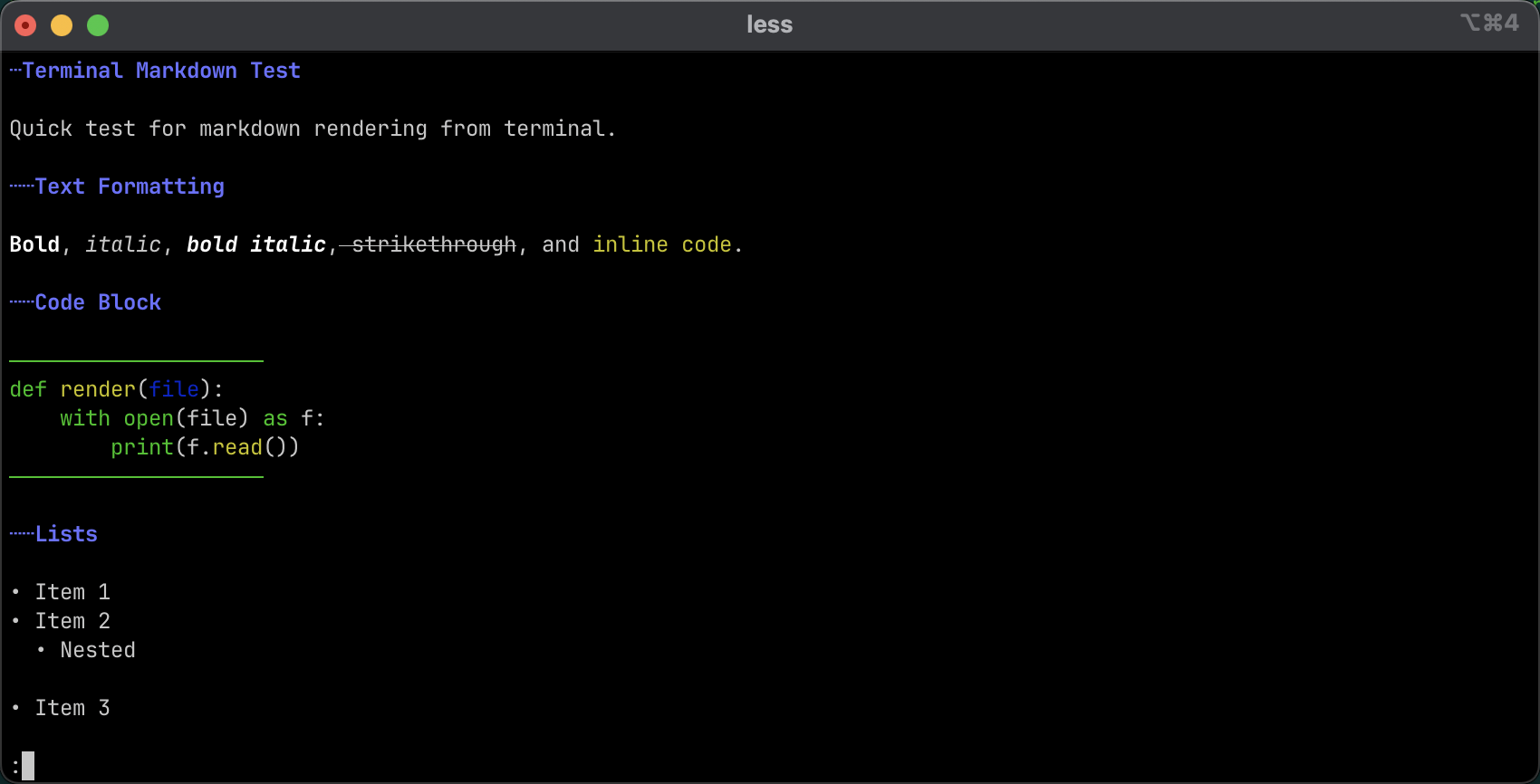
- Advantages:
- Good formatting quality
- Handles tables and syntax highlighting well
- Supports hyperlinks
- Can display inline images in compatible terminals
- Disadvantages:
- Image support depends on terminal capabilities
- More complex than Glow
- Works best with: Terminal emulators that support image protocols:
- Best for: Terminal users who want rich formatting and image support
Grip#
- What it is: Renders Markdown exactly as GitHub would, served locally through a web browser
- GitHub: joeyespo/grip
- Latest Release: v4.6.1 (January 2024)
- Installation:
- Usage:
Then open
http://localhost:6419- Using
uvxSee grip's feature list for rendering customization.
- Using
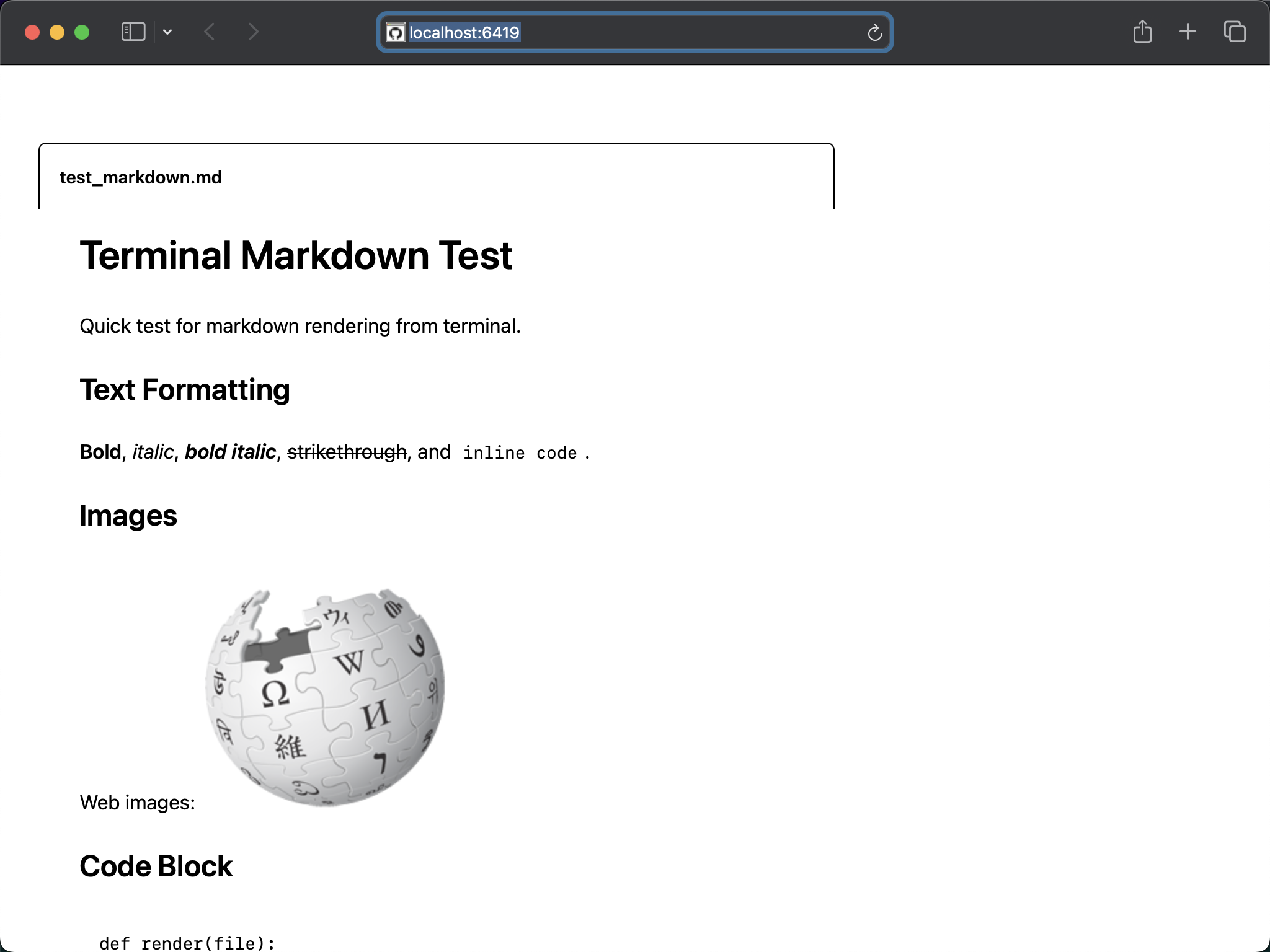
- Advantages:
- GitHub-flavored Markdown rendering
- Full image support
- Good table rendering
- Matches GitHub appearance exactly
- Disadvantages:
- Requires a web browser
- Runs a local web server
- Best for: Previewing work before pushing to GitHub
mdless#
- What it is: Pager-like interface for reading Markdown with familiar navigation
- GitHub: ttscoff/mdless
- Latest Release: v2.1.17 (March 2025)
- Installation:
- Usage:
- Advantages:
- Simple and lightweight
- Familiar pager interface (
less-like) - Good for large documents
- Disadvantages:
- Limited styling compared to other tools
- No image rendering
- Best for: Reading long documents with familiar pager shortcuts
rich-cli#
- What it is: Colorful terminal rendering built on Python's Rich library
- GitHub: Textualize/rich-cli
- Latest Release: v1.8.1 (December 2024)
- Installation:
- Usage:
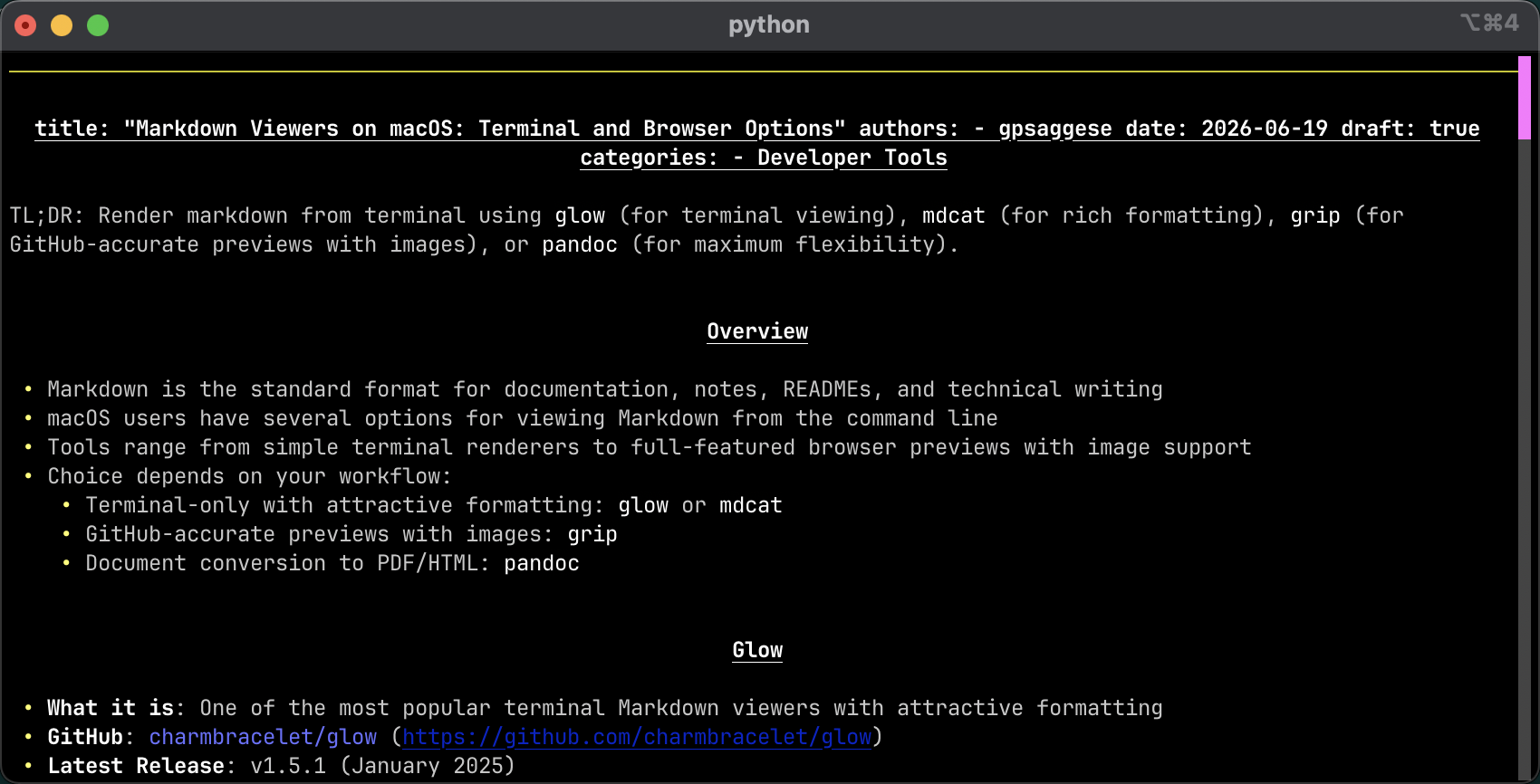
- Advantages:
- Colorful terminal output
- Easy installation via pip
- Good Unicode support
- Disadvantages:
- No image rendering
- Fewer features than mdcat
- Best for: Quick terminal previews with minimal setup
Pandoc#
- What it is: The Swiss Army knife of document conversion with multiple output formats
- GitHub: jgm/pandoc
- Latest Release: v3.1.12.2 (April 2025)
- Installation:
- Usage examples: For advanced options and output formats, see pandoc's user guide.
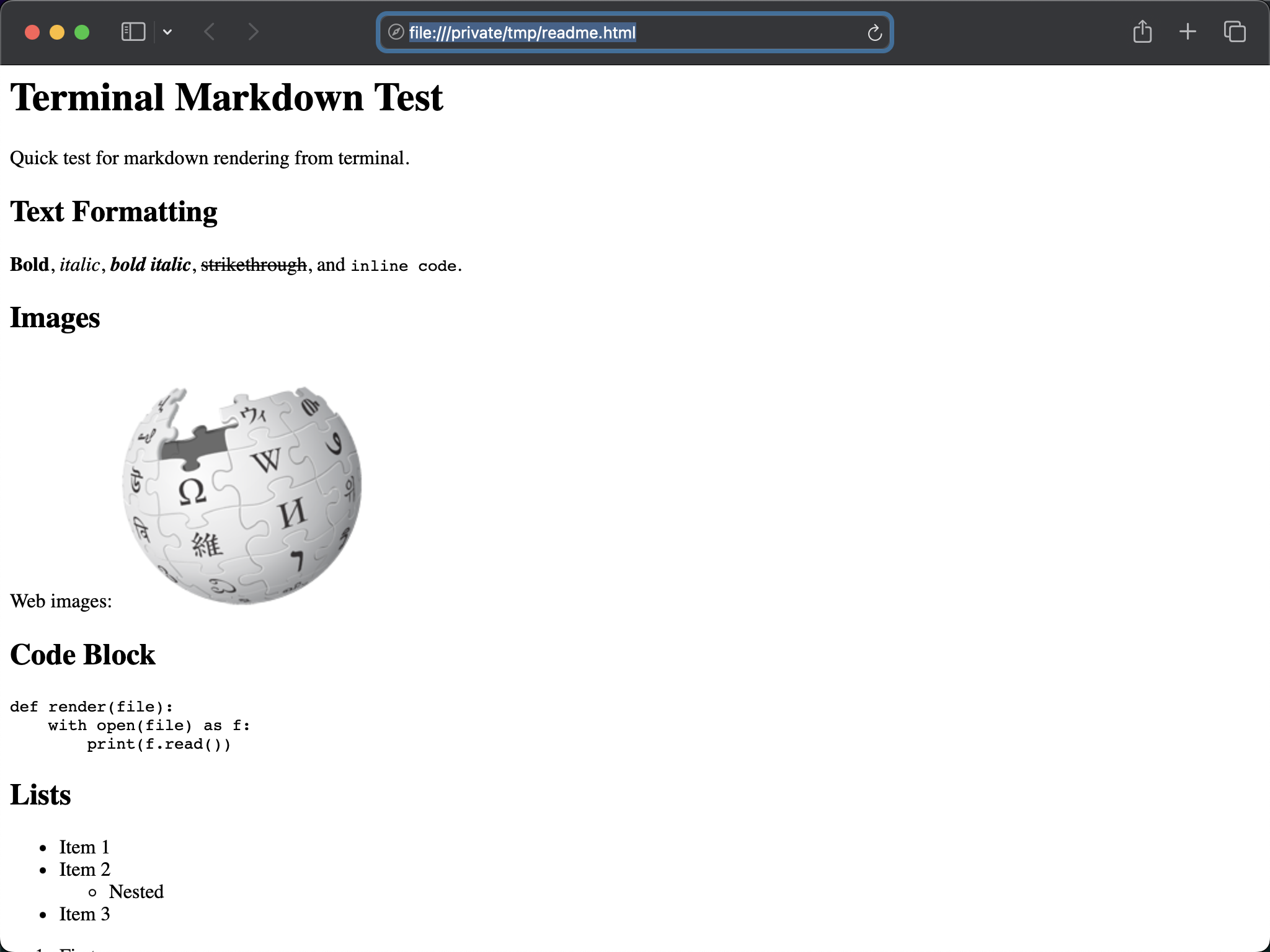
- Advantages:
- Full image support
- Multiple output formats (HTML, PDF, DOCX, etc.)
- Highly customizable with templates
- Industry-standard converter
- Disadvantages:
- More complex than dedicated viewers
- Converts rather than previews in real-time
- Best for: Document conversion and flexibility
Comparison Table#
| Tool | Terminal | Images | GitHub Style | Browser |
|---|---|---|---|---|
| Glow | Yes | No | No | No |
| mdcat | Yes | Limited | No | No |
| mdless | Yes | No | No | No |
| rich-cli | Yes | No | No | No |
| Grip | No | Yes | Yes | Yes |
| Pandoc | Optional | Yes | Varies | Yes |
- Everyday terminal viewing:
glow - Richer terminal rendering:
mdcat - GitHub-accurate previews:
grip - Document conversion:
pandoc - Image rendering: Browser-based solutions (
griporpandocto HTML) work best on macOS
Beyond Individual Tools#
I've built a tool called open_md.py that combines the strengths of all these
approaches. It supports multiple rendering backends (pandoc, grip), integrates
with Docker, and automatically preprocesses embedded diagrams. See the
helpers_open_md blog post
works, or check out the
open_md.py source code
directly.